
Our second Python activity today will involve analyzing your Amazon spending habits (assuming you have an Amazon account; read on for what to do if you don’t). In order to do that, you’ll need to download your Amazon order history.
If you’d prefer or if you don’t have an Amazon account, you can use this anonymized sample data.
Get to the data download page
Click here, if you’re logged in to Amazon, to get to the download page.
If the link doesn’t work for some reason, do the following:
- Once logged into Amazon, click on Accounts & Lists (at the top right of the Amazon page).
- On the Accounts & Lists page, find the Download Order Reports link. (It’s under the Ordering & Shopping Preferences heading).
Specify the report type

From the Report Type dropdown menu, choose Orders and shipments.
Choose a start and end date
You can decide how long a period you want to analyze. Any length of time will work. The larger the timespan, the longer the report will take to download, but it shouldn’t be too long in any case.
Give the report a name if you want
This doesn’t really matter, but you can give it a descriptive name if you want, to make it easier to download again later.
Click on Request Report

Your report will take a few seconds (maybe up to a minute?) to generate. Then it will download automatically.
Find the report you just downloaded
Locate the CSV file you just downloaded. For example, it might be in your Downloads folder on your computer.
Change the name of the report
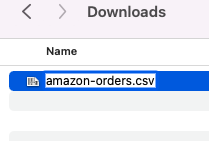
THIS IS IMPORTANT. If you don’t do this, the tutorial won’t work without modification.
Right-click, or control-click, on the file you downloaded, and select Rename from the context menu. Then name the file
amazon-orders.csv
The name must be exactly the same as shown above! That includes the hyphen, the S at the end of “orders” and the .csv file extension.
Now you’re done! Leave the file where it is; we’ll come back to it later.
Checklist
- Did you download the Orders and Shipments report?
- Is the file you downloaded named
amazon-orders.csv? - Do you remember where you saved the file?