
For your group annotation assignment, you’ll annotate an article that’s linked from our BruinLearn site. That linked article will already have hypothes.is activated, and you’ll be automatically logged in to hypothes.is via a special account associated with BruinLearn.
But in order to activate hypothes.is on an “annotation bank” article, you’ll have to take a few extra steps, like this:
- Create a hypothes.is account.
- Install the hypothes.is extension or bookmark.
- Make “private” annotations on the article of your choice.
- Export your annotations as a JSON file.
- Submit that file via BruinLearn.
Create a hypothes.is account
On the hypothes.is website, create a new account linked to your email address.
Install the hypothes.is extension or bookmarklet.
To activate hypothes.is on a webpage, you need to install an extension or bookmarklet for your browser (Chrome, Firefox, or Safari). It’s usually a one-click process. Once you’ve installed it, you can use hypothes.is to annotate any page or PDF on the internet.
Navigate to the article you’d like to annotate.
Use your browser to open the article you’ve chosen to annotate. You’ll find the link alongside the article on the annotation bank page.
Click on the hypothes.is extension or bookmarklet

To activate hypothesis on the article you’ve opened, click on the extension or bookmarklet you installed in the second step. You’ll be prompted to log in. Use the account you created in the first step.
Select the text you want to annotate.
This part is almost the same as the group annotation project. Highlight the text you want to annotate and click “Annotate.” Then add your comment using the hypothes.is sidebar.
Make your annotation private.
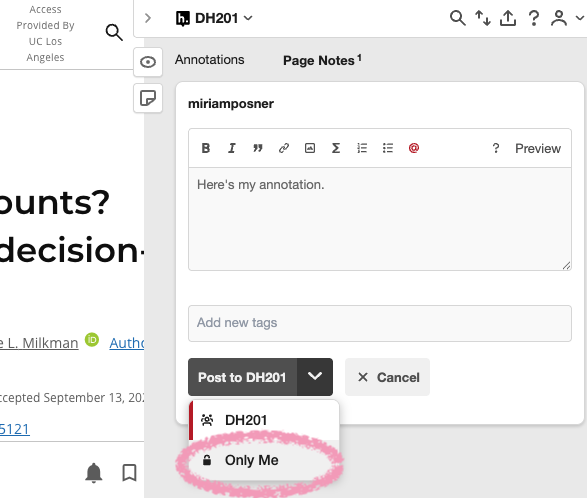
Before you finalize each annotation, select “Only Me” to indicate that you want to keep your annotations private. Do this for each of your annotations.
Export your annotations
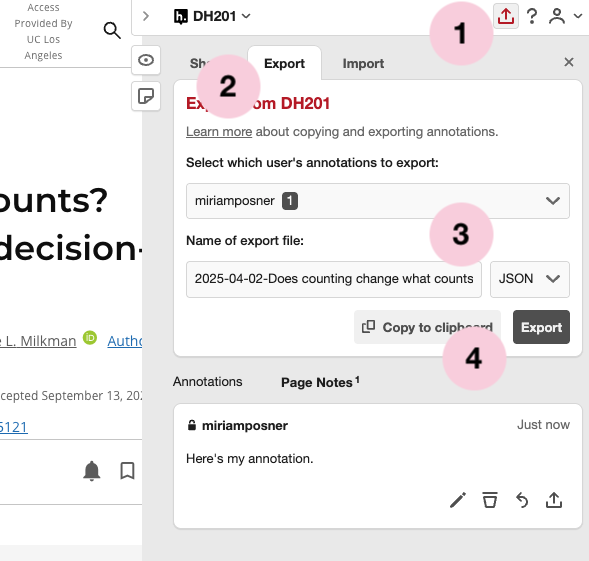
When you’re done annotating your article, click on the Share/Export/Import button (1) on the hypothes.is sidebar. Click on the “Export” tab (2) and export your annotations as a JSON file (3 and 4).
Submit the JSON file via BruinLearn

Using the appropriate assignment on BruinLearn, submit the JSON file that contains your annotations.
And that’s it! I will download your annotations and import them to my own hypothes.is application so that I can view them.